
For a few files, select them for upload. To give Claude access to a whole local folder, use Cowork in Claude Desktop on a paid plan. Uploading files and granting folder access are different ways to work with your material.
If you opened Claude’s “+” menu expecting an “Upload folder” option, we couldn’t find one there either. This is the menu as of September 8, 2026:
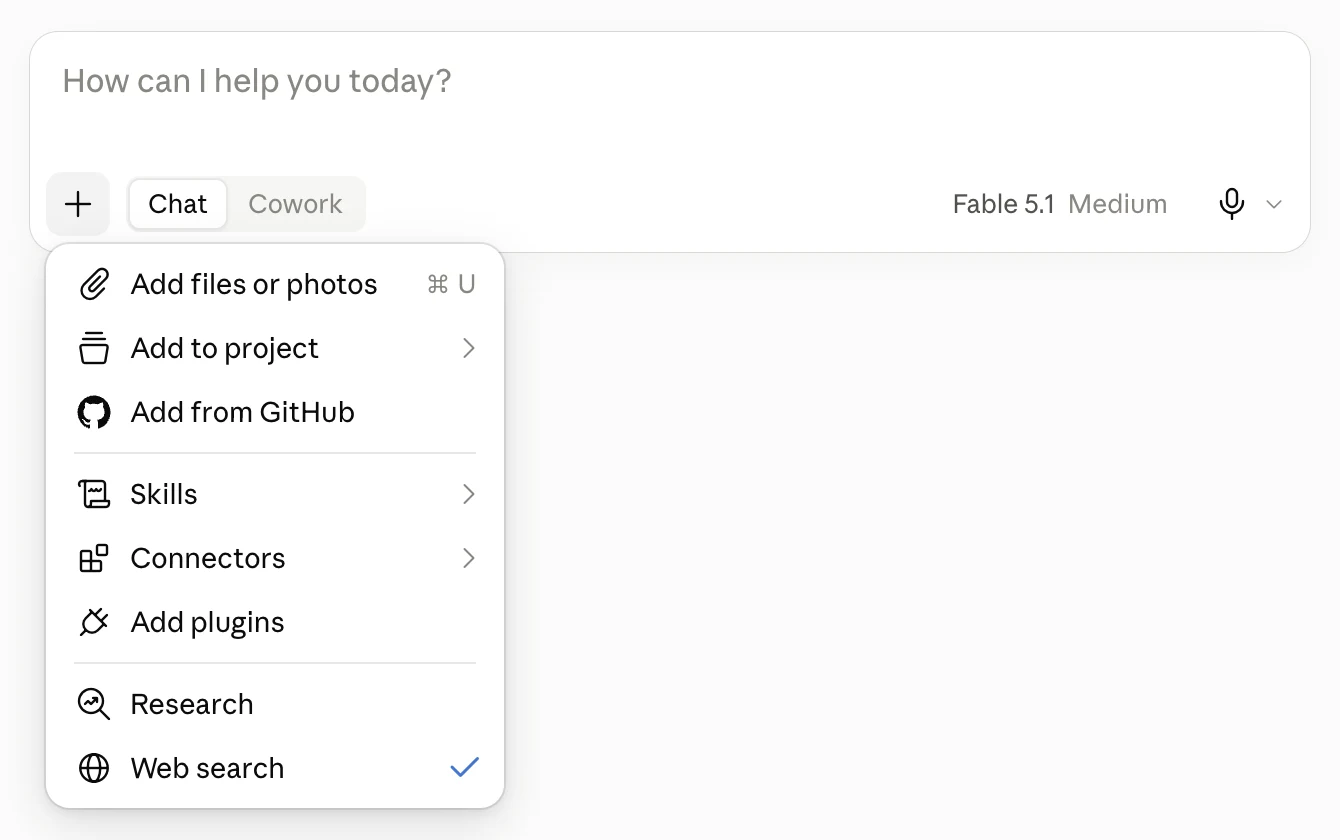
Figure 1. The attachment menu and Chat/Cowork switch, September 8, 2026.
Upload the files inside the folder
For a small batch, select the files inside your folder. Anthropic’s upload guide documents file uploads, with these limits:
- Up to 20 files per chat.
- Up to 500 MB per file; PDFs are capped at 1,000 pages. File format and the amount of text also affect what Claude can process.
- Only the selected files are attached. Claude does not gain access to their parent folder or its subfolders.
For material you want to reuse across conversations, you can also add files to a Claude project’s Files section.
Let Claude work with the folder through Cowork
For a folder with many files or subfolders, use Cowork to give Claude access without selecting each attachment. This is available in Claude Desktop on macOS and Windows with a paid plan.
- Start a new chat in Claude Desktop and switch from Chat to Cowork at the bottom of the message box (see Figure 1). If there’s no switch, your app has the newer version where they’re one Claude, and you can skip this step.
- Use the folder selector below the message box to choose the folder you want Claude to work with.
- Describe what you want Claude to do with its contents.
Since October 6, 2026, Cowork tasks on Pro and Max run in Anthropic’s cloud and fetch a copy of each file they need, so keep Claude Desktop open while Claude works.
Why does Claude Cowork miss information in my files?
Connecting a folder does not make every file searchable. Documents may need their text extracted, scans need text recognition, and recordings need transcripts.
With a PDF, the difference is simple:
- “Read this paper.” Claude knows which file to open and process.
- “Which papers discuss this topic?” Claude must find them first. Plain-text search tools such as grep can miss PDF contents until the text is extracted. The ripgrep guide demonstrates this.
If a paper never appears in search, Claude may never choose to read it. In our test with research papers, Claude searched with grep and passed over PDFs. When asked to read every file, it spent several minutes looking for reading tools without completing the check.
Claude can try extracting the files or using a PDF-aware search tool. For repeated questions, preparing the text ahead of time avoids that extra work during the conversation.
Even when Claude opens a PDF, it may read only part of it. Did Claude actually read my PDF? shows how to check what it used.
Search the folder from Claude Desktop with StashBase
StashBase prepares your files ahead of time, helping Claude spend less of the conversation processing files and more of it finding the right answers:
- Have readable text ready. Documents and scans become searchable text, so Claude can retrieve passages directly. Recordings aren’t transcribed; a transcript saved as a text file is searchable.
- Find sources through a Wiki. Linked topic pages help Claude locate sources by what they cover, even when filenames offer no clues.
- Search by meaning. Find related passages even when their wording differs from your question.
To use it with Claude Desktop:
- Open and prepare your folder. Use Open Folder… in StashBase and wait for text preparation to finish. Search for a familiar phrase to check the prepared text.
- Connect Claude Desktop. Follow the Claude Desktop setup guide and keep StashBase running.
For ongoing work, you can also build a Wiki to organize topics and source links. A Wiki is optional; prepared files can be searched without one.
Ask your question and mention StashBase:
Use StashBase to answer:
[your question]
Follow the source references to check the answer against your original files. Those files stay in place; the content Claude uses to answer is sent to its model.