
Uploading a PDF does not tell you how much of it Claude used to answer. Ask which pages it read, then check the available tool activity and source references.
I uploaded a 943-page scanned parenting book and asked Claude, “What is this book about?” It gave me a detailed overview. Then I asked whether it had read the whole book.
It said it had read 4 pages: the cover and 3 pages of the table of contents. Some of its description of later chapters was an extrapolation.
Within the upload limits does not mean fully read
Meeting Claude’s upload limits does not establish which pages supported its answer. The limits describe what the upload workflow accepts and processes.
Claude’s upload guide lists these limits as of September 9, 2026:
- Up to 100 pages: Claude Chat analyzes text and visual elements.
- 101–1,000 pages: it processes text only.
- 500 MB per chat attachment: additional token limits also apply.
A large scan also needs readable text: pictures of pages without a text layer cannot be searched like ordinary text.
A chat application has to balance thoroughness with response time. The question matters, too: a cover and contents page can support a book overview, while a question about a specific passage needs the body text. In this case, Claude used a small selection of pages; the conversation does not establish why it chose that scope.
Neither a quick response nor a long wait proves that it read the whole file.
1. Ask what Claude actually read
Ask Claude which pages it actually read and which parts of its answer were inferred:
Which pages did you actually read?
Which parts of your answer were inferred?
My follow-up was simply, “Have you read the whole book yet?” That revealed the gap between the detailed answer and its limited reading scope.
For a specific claim, ask for the supporting passage and page reference, then check it in the PDF. Claude’s account of its own reading is a starting point; an accurate quotation is stronger evidence for that particular claim.
2. Check the tool calls
If the conversation shows file-reading activity, expand it. Look for the page ranges opened, the pages rendered as images, or the text extracted by commands.
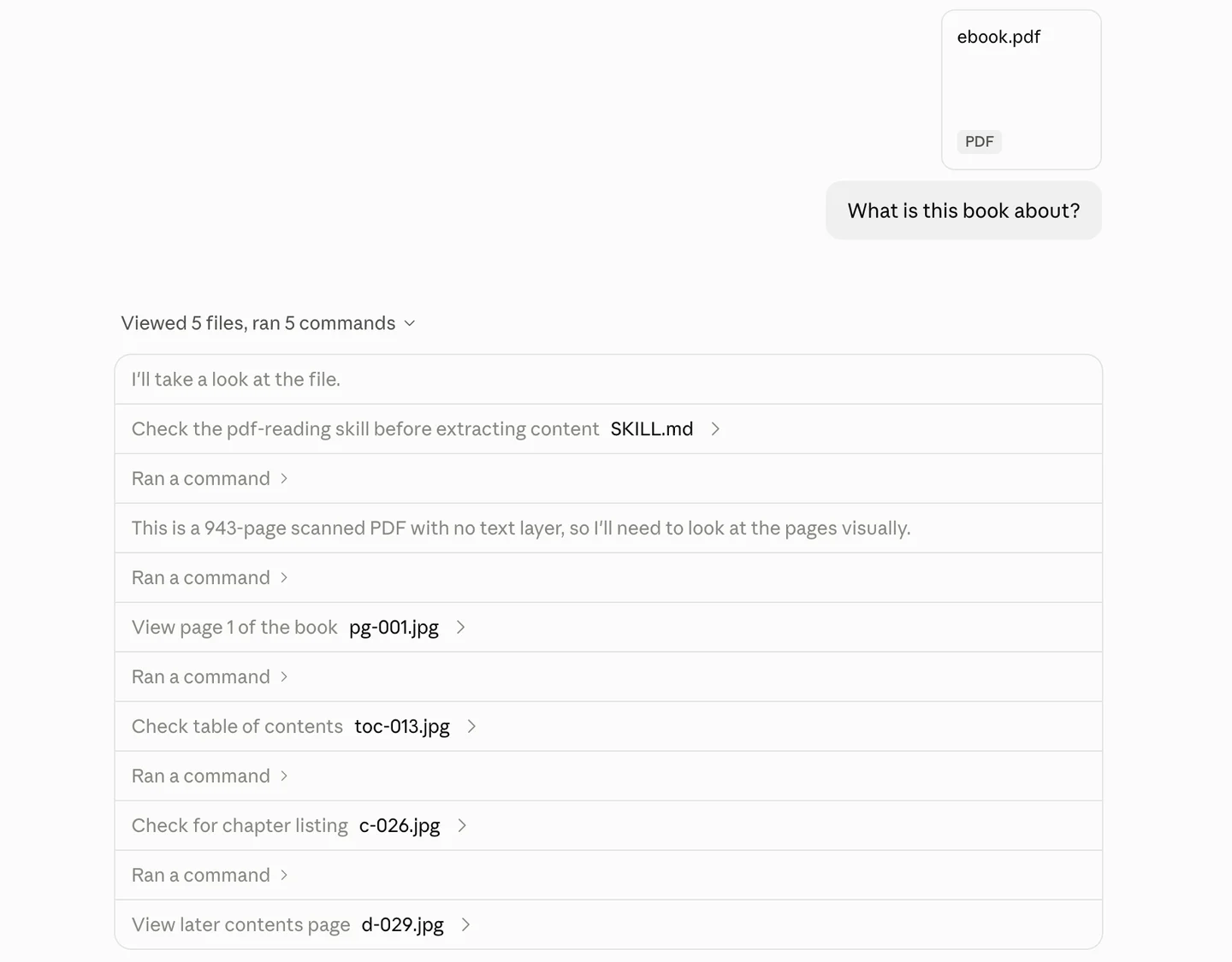
Figure 1. The activity list reports 5 files viewed: a PDF-reading skill file and 4 images of book pages, September 9, 2026.
“5 files viewed” did not mean five documents read in full. The individual calls showed what Claude had opened. Likewise, opening a PDF or running a text-extraction command does not by itself prove that all its contents were used in the answer.
Reading tools differ by client. For example, Claude Code reads PDFs longer than 10 pages in ranges of up to 20 pages per call. Visible tool activity may not show everything processed during upload, so use it alongside Claude’s explanation and the source passages.
Prepare the full PDF once with StashBase
If you are willing to wait for the whole document to be prepared before asking questions, StashBase moves that work ahead of the conversation. It extracts document text and uses optical character recognition (OCR) for scans, making the contents available for repeated search and reading.
- Open the PDF’s folder in StashBase. Wait for preparation to finish. Check recognized text against a few original pages, including pages near the end and any tables or small print.
- Connect Claude Desktop using the MCP setup guide. Keep StashBase running.
- Choose the reading scope. For individual questions, Claude can use Search by meaning to find related passages even when the book uses different wording. If you want the entire book read, request that explicitly:
Use StashBase to read [book title] chapter by chapter.
Keep a checklist of completed chapters and summarize each with sources.
If you stop, state what remains unread.
Preparing the full document and having Claude read every chapter are separate steps. A long book may require several rounds of reading. The checklist makes unfinished work visible, while the prepared text remains available for later questions without repeating the initial OCR.
For ongoing use, build a Wiki to organize chapter notes, topics and links back to the book. OCR runs locally; search by meaning sends text to your embedding provider, and Claude receives the passages it uses. See search details.