

When you manage five clients, one head is not enough to track five voices, five sets of numbers, and five sets of formatting rules. This walkthrough gives each client their own folder so you can turn messy weekly notes into a clear update, save client preferences for next week, and switch accounts without anything carrying over.
Open the template and see where things go
Open Client Update Writer from the Gallery in StashBase. Use Claude, Codex, or Antigravity in Chat; if none is set up yet, sign in to use StashBase Agent.
The template ships with two contrasting example clients—Roam Coffee and Kite Labs—so you can see how the layout works before replacing them. You don’t need to fill in these files by hand. Each client gets one dedicated folder under clients/, and the Agent keeps it and the dashboard current as you talk.
AGENTS.mdFact-checking, client isolation & dashboard rulesindex.htmlClient Dashboard with weekly status & blockerscontext/profile.md— your agency & default style-
clients/One isolated folder per clientprofile.mdChannel, reader & reporting preferencesreferences/Weekly notes, PDFs, screenshots & repliesupdates/Saved weekly or monthly update drafts
1. Set up your agency and first client
In Chat, type:
Set me up.The Agent asks about your work, your first client, and how you usually write to them, one question at a time. Short answers are enough. The video uses Roam Coffee, an illustrative coffee brand:
I run social media for brands. First client: Roam Coffee on Instagram. Founder Maya wants it short — no fluff.
If you have an old update that sounds like you, paste it so the Agent can pick up your tone. If not, skip it and refine the style on your first draft.
Saved: Your agency defaults go in context/profile.md, Roam Coffee’s background goes in clients/roam-coffee/profile.md, and the built-in examples are cleared safely. The Agent also adds Roam Coffee to the Client Dashboard (index.html).
Check: Open clients/roam-coffee/profile.md from the Agent’s reply or the file tree. Fix anything it got wrong, either in Chat or directly in the document.
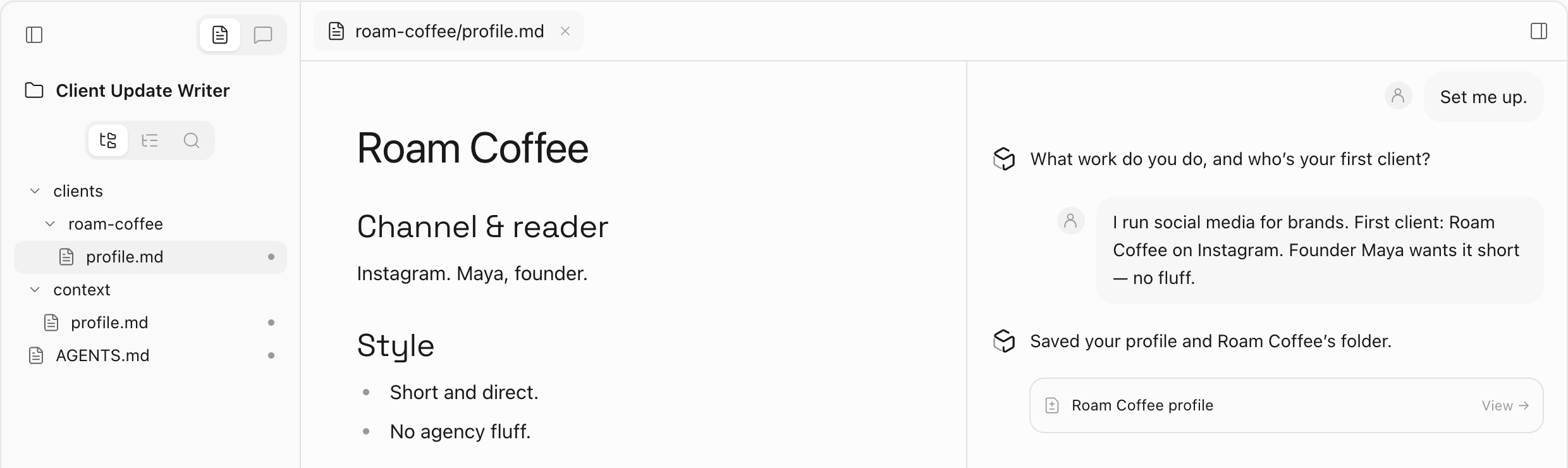
- One folder per clientExpand
clients/roam-coffee/to see everything for this account. - Check the rulesRead or edit the client’s channel, reader, and style beside Chat.
- Jump to what changedClick the file link in the Agent’s reply to open it directly.
2. Turn messy weekly notes into a draft
Paste your rough notes into Chat, or drop exported PDF reports and screenshots into clients/roam-coffee/references/. Then ask for the update:
Write this week’s update for Roam Coffee from these notes: 2 Reels + 1 post live. Iced latte Reel hit 18k views, 14 store DMs. Next week’s 3 captions ready — still need summer cup photos.Because the notes leave out when the photos are needed, the Agent asks before writing instead of making up a deadline:
Agent: When do you need the cup photos so next week stays on schedule?
You: Wednesday noon.
The video’s first draft is:
What went live: 2 Reels and 1 post. The iced latte Reel reached 18k views and brought 14 store DMs.
Next week: 3 summer launch captions are ready to schedule.
Need from you: Summer cup photos by Wednesday noon to keep next week on schedule.
Saved: Your raw notes stay untouched in clients/roam-coffee/references/, the draft is saved in clients/roam-coffee/updates/, and the dashboard status updates to Draft ready.
Check: Compare the draft against your notes and report. Verify every number and make sure no unconfirmed causes or promises crept in.
3. Tweak the draft and save the client’s preference
With busy founders, approval requests buried at the bottom of an email often get missed. Ask the Agent to move it up—and remember that layout for next time:
Put the photo request at the top. Always lead with what Maya needs to approve.The revised draft moves Need from you to the opening line:
Need from you: Summer cup photos by Wednesday noon to keep next week on schedule.
What went live: 2 Reels and 1 post. The iced latte Reel reached 18k views and brought 14 store DMs.
Next week: 3 summer launch captions are ready once photos arrive.
Saved: The Agent edits the same draft file—use Review after the turn to keep or undo individual changes—and adds Lead with items needing approval. to clients/roam-coffee/profile.md. Even if you only ask for a one-off edit, the Agent checks whether you want to save that preference as the client’s default.
Check: Open clients/roam-coffee/profile.md to confirm the new rule lives inside Roam Coffee’s folder only. Copy the final update into your email or Slack and send it yourself, then tell the Agent:
Sent to Roam Coffee.That marks the client Sent on the dashboard while keeping any pending client blockers visible.
4. Add another client without mixing accounts
When it is time for a different client, add them in Chat:
Add a client: Kite Labs — B2B software on LinkedIn. Focus on clicks and leads. Formal tone.Then drop in their weekly numbers:
Write Kite Labs’ update: 4 posts live, 310 site clicks (+22%), 6 demo requests. Next week: customer story.The draft comes back in Kite Labs’ own format—formal and data-first, with none of Roam Coffee’s casual tone or approval-first structure leaking across:
Results: 310 site clicks (+22% WoW) and 6 demo requests across 4 LinkedIn posts.
Next week: Publishing the Q4 customer story thread.
Saved: Kite Labs gets its own folder under clients/kite-labs/ (profile.md, references/, and updates/) and its own card on the dashboard.
Check: Look at the file tree on the left. Each client’s notes, preferences, and updates stay in separate folders so accounts do not mix.
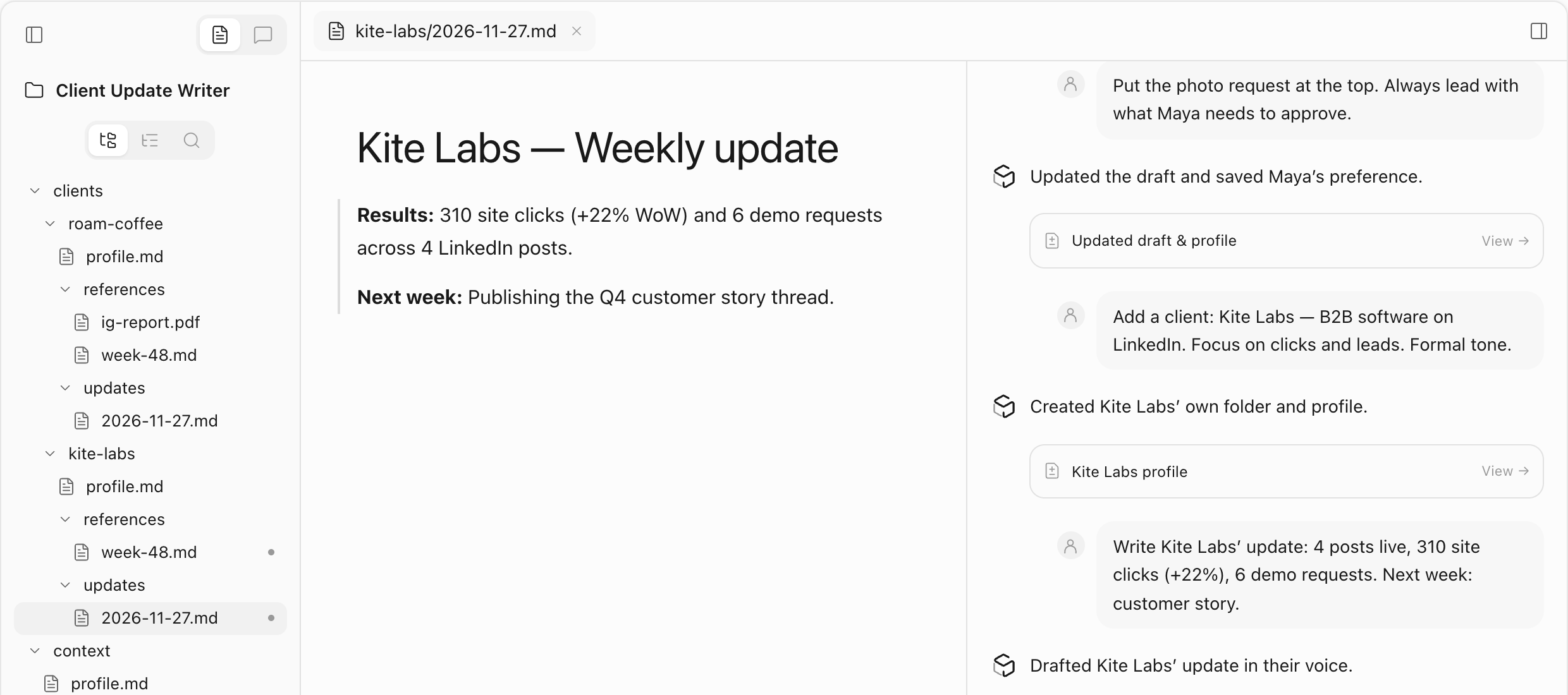
- Separate folders
roam-coffee/andkite-labs/keep files isolated underclients/. - Client-specific formatKite Labs leads with numbers and keeps a formal tone.
- Clean switch in ChatAdd or switch clients without starting a fresh workspace.
Come back next Friday
Open index.html to see the Client Dashboard in table or gallery view: every client’s channel, reporting preferences, weekly status (Not started, Draft ready, Waiting approval, Sent), and what you are still waiting on from them. You can flip a status right on the page or copy a client’s weekly prompt with one click.
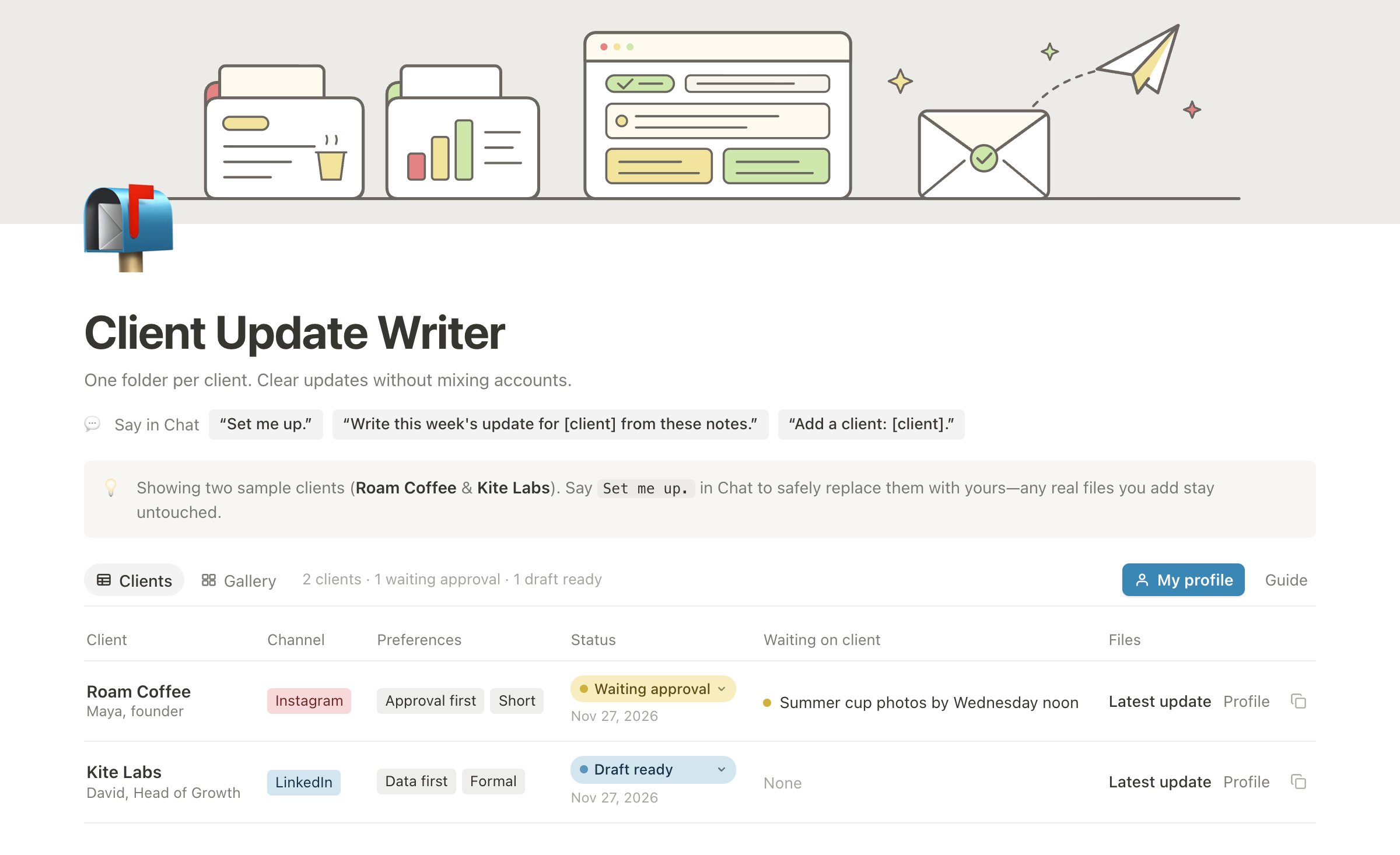
- Weekly statusSwitch between
Not started,Draft ready,Waiting approval, andSentinline. - Waiting on clientSee open blockers and deadlines before writing the next update.
- Quick accessOpen a client’s latest draft, edit their profile, or copy their update prompt.
When a client writes back with new materials or a change of plan, tell the Agent—for example, Roam Coffee replied: cup photos sent. It logs the reply in clients/roam-coffee/references/ and updates the dashboard blocker. Next Friday, drop in the new week’s notes; the Agent reads only that client’s folder and picks up right where last week left off.