
You can build in public by sharing a feature you added, a decision you changed, or a question a user asked. If the people you want to reach are on LinkedIn, those small updates help them understand what you’re building. This walkthrough turns a conversation about your work into one post, with the background saved for next time.
Open the template and see where things go
Open LinkedIn Ghostwriter from the Gallery in StashBase. Use an available Agent in Chat; if you don’t have Claude or Codex set up, sign in to use StashBase Agent.
The template keeps your background, work notes, and posts in the same project. You don’t need to fill in these files first. The Agent saves what you tell it and gives you links to check the result.
AGENTS.mdAgent rules & your standing instructions-
context/Your reusable backgroundprofile.mdWho you are & how you writework/Current facts about your projects
inbox/What happened each dayposts/Your past posts & new drafts
1. Tell your Agent about your work
In Chat, type:
Set me up.Answer the questions about your work and how you want your posts to sound. A short answer is enough. The video uses JobFit, an illustrative job-search app:
I build JobFit, a job-search app. Keep it casual. No hype.
Saved: Your background goes in context/profile.md, project facts in context/work/, and explicit ongoing instructions in AGENTS.md.
Check: Open the saved profile from the Agent’s reply or the file tree. Correct anything it misunderstood, in Chat or in the document.
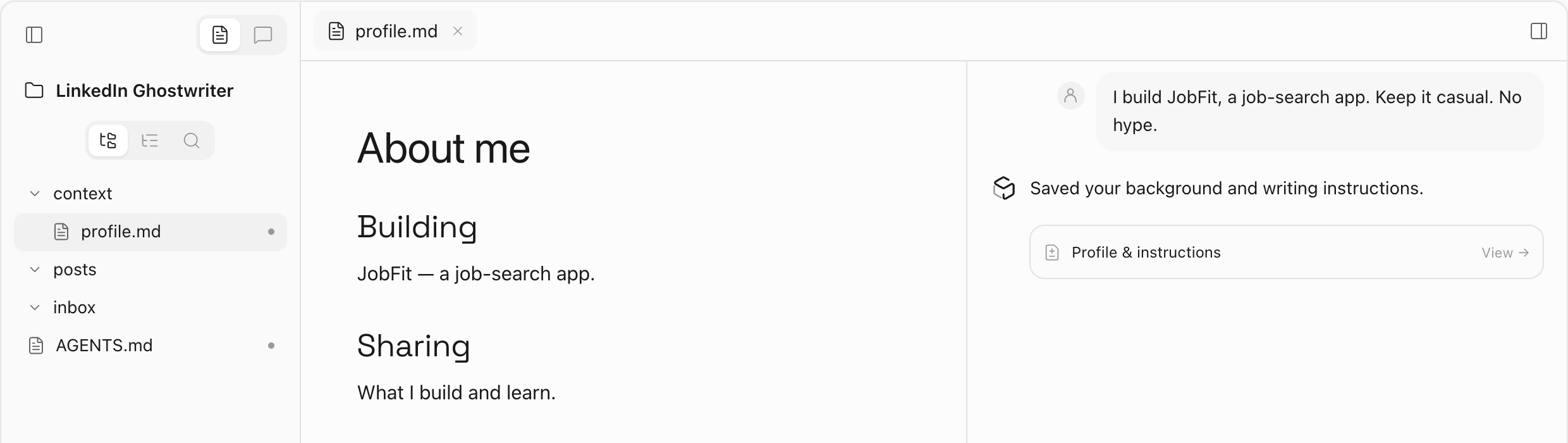
- Find the fileExpand
context/and openprofile.md. - Check the contentRead or edit the saved background beside Chat.
- Open a saved resultFollow the file link in the Agent’s reply.
2. Add past posts (optional)
Share three to five posts that sound like you. Fewer is fine, and you can skip this if you haven’t posted before.
Saved: Each post goes in posts/. The Agent adds the writing habits it notices to context/profile.md. In the video, those are short paragraphs, specific stories, and no hype.
Check: Read the writing-style notes in your profile. Tell the Agent if a preference doesn’t fit.
3. Talk about something you worked on
Describe what happened in your own words. You don’t need a finished topic or outline:
You: I added interview practice to JobFit.
Agent: Why did you build it?
You: Users didn’t know how to prepare. Now a job description becomes practice questions.
Saved: The day’s account goes in inbox/; current project facts go in context/work/. You can add more detail or leave the story for later.
Check: Open the saved notes. Do they capture what changed and why you did it?
4. Choose an angle and write the post
When you’re ready, ask:
What post angles do you see?The Agent suggests angles with short outlines from your saved material. In the video, the choices are a feature walkthrough or the user request behind it. Choose the one you want:
Use the second angle. Write it.The video’s example draft is:
I added interview practice to JobFit.
Users were getting interviews, then asking how to prepare.
So I built a way to turn a job description into practice questions, using their own experience.
One request kept coming up. That’s what I built next.
Saved: The draft goes in posts/.
Check: Open it beside Chat. Check the facts and whether the wording sounds like you. Edit it yourself or ask for a change, such as “Make the opening more casual.” When it’s ready, copy it to LinkedIn and publish it yourself.
Come back with the next update
Return to the same project and tell your Agent what changed. Your background, writing preferences, work notes, and past posts are available for the next draft. If a correction should apply to future posts too, say so; the Agent saves it as a standing instruction in AGENTS.md.